Being an IT Systems Administrator and being in work and personal environments that used Slack, I’ve always looked for a way to send a message in Slack using PowerShell especially for repetitive and automated tasks.
I wanted to create a guide about how I accomplished this in case it can help someone else in a similar situation. There is a Slack configuration that is a pre-requisite before the PowerShell script will work.
Slack Configuration
Before you get started in PowerShell, you will first need to create a Slack App in the workspace where you want to send messages. You will want to navigate to https://api.slack.com/apps and login to your Slack workspace if you are not already authenticated. Then you will want to click Create New App.
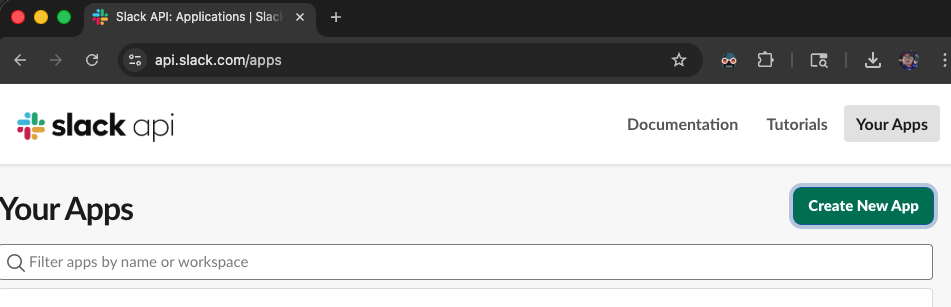
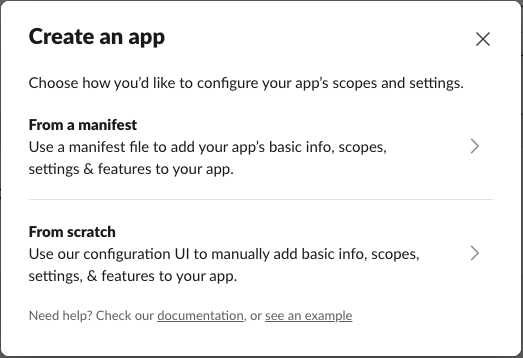
Start the creation of the Slack app by clicking From scratch. If applicable, select the manifest option.
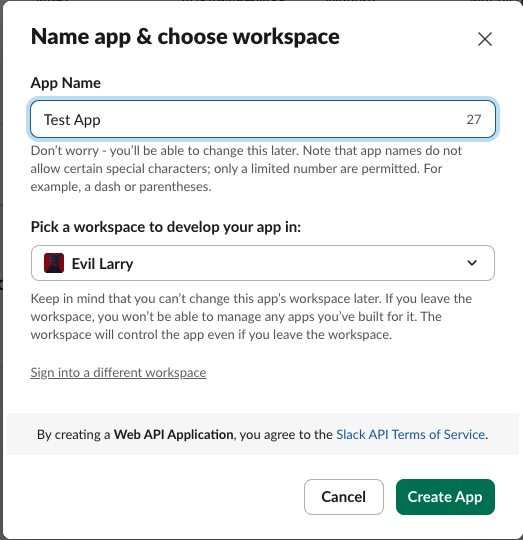
Next, you will input your App Name and select the Slack Workspace to install the Slack App. Once ready, you will click Create App.
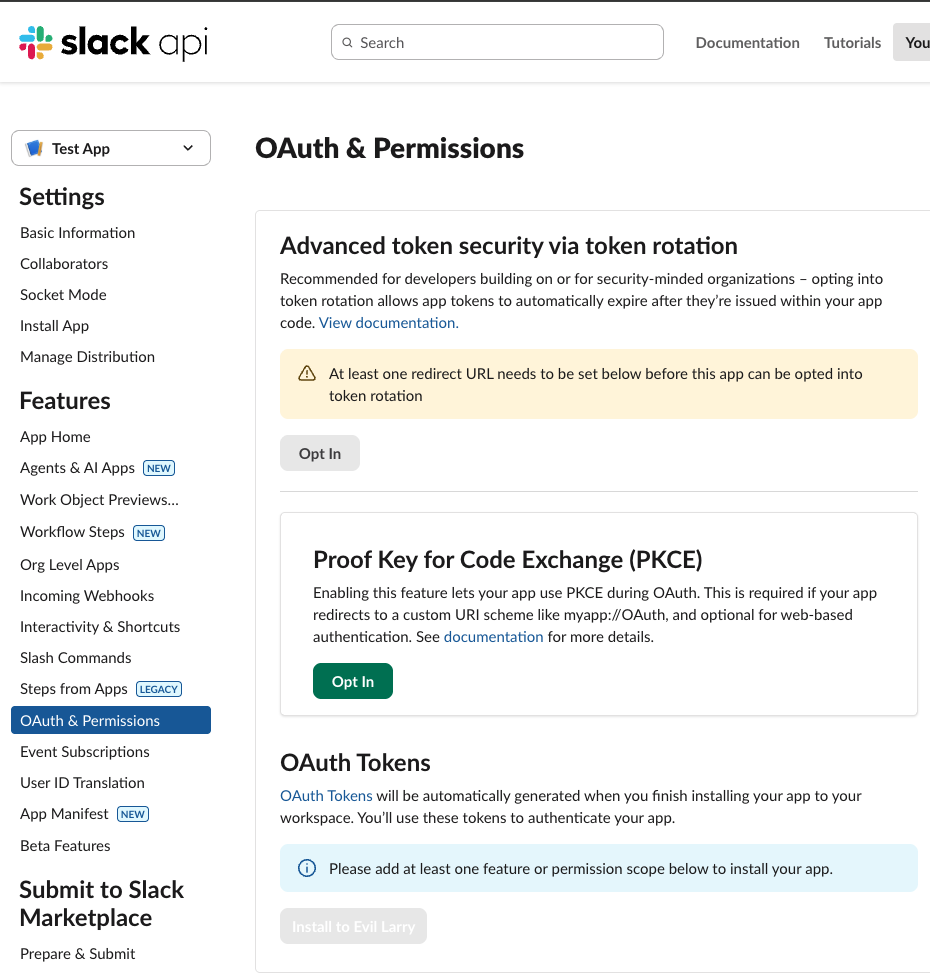
Once the app is created, you will locate OAuth & Permissions on the left sidebar and click that.
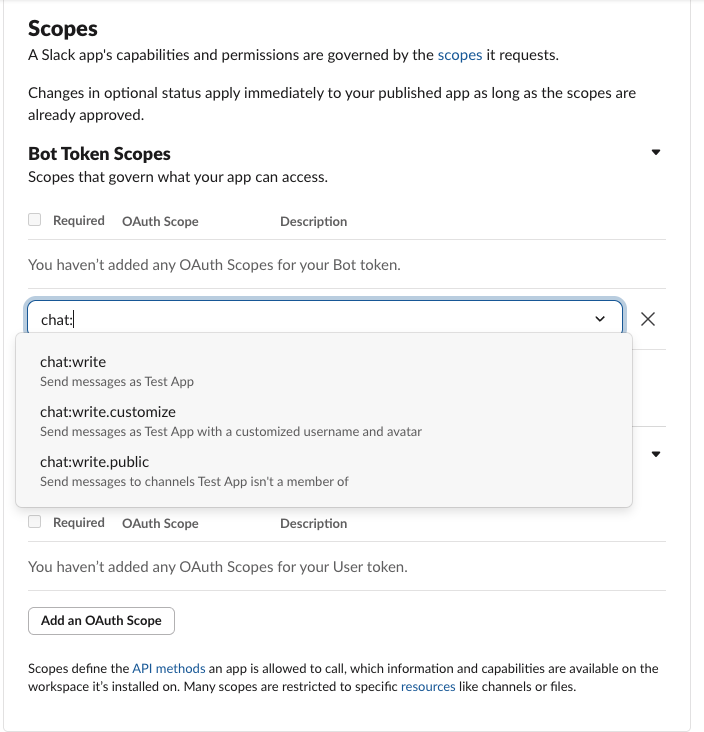
In the OAuth & Permissions section, you will need to scroll down until you find the Scopes section. Here is where you will add the needed OAuth Scopes for your Slack App to have the permission to send the Slack message. Click on Add an OAuth Scope button, then locate the needed scopes. The scopes needed for this guide will be Bot Token Scopes of the following permissions: chat:write, chat:write.customize, chat:write:public.
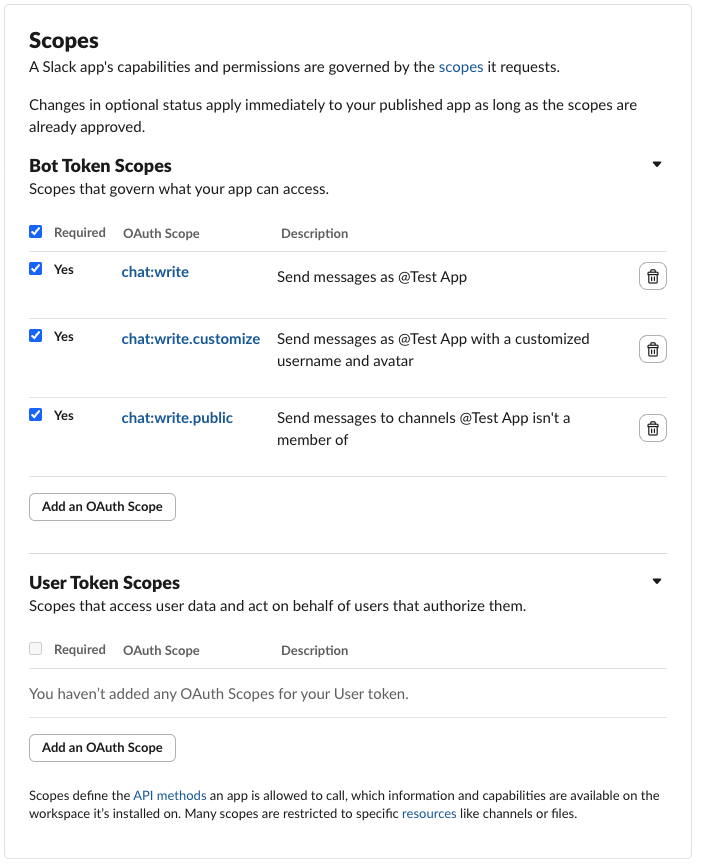
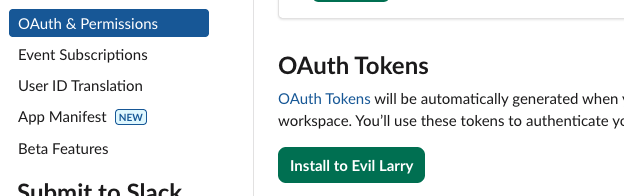
Now that we have selected the scopes needed for the Slack App, we will need to install the application to the Slack workspace by clicking Install to [WORKSPACE NAME].
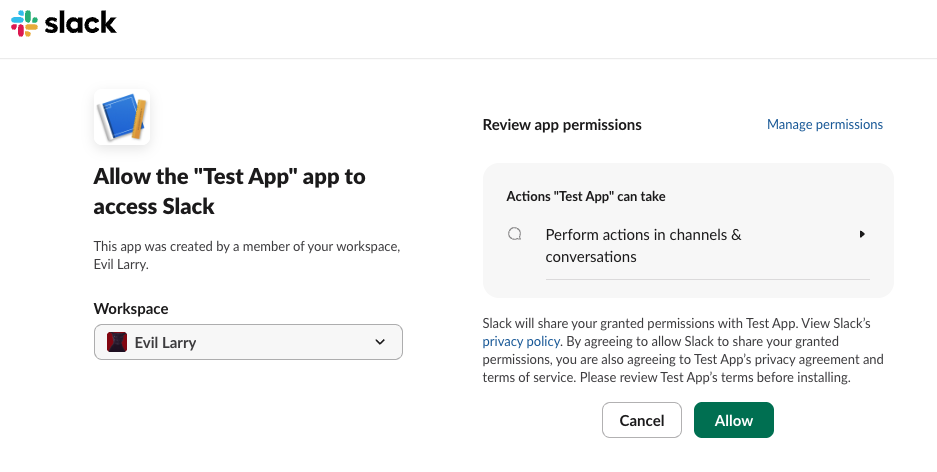
The next screen will be the Review of the Slack App’s installation request to the Slack workspace. Once ready, click Allow.
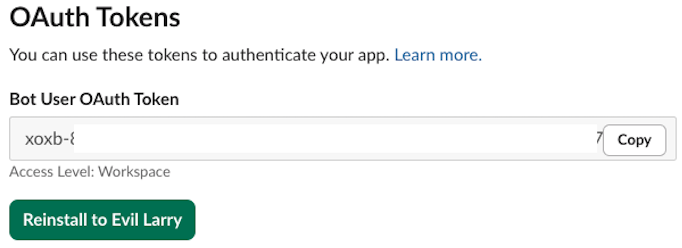
After the Slack App has been installed in the Slack Workspace, it will take you back to the OAuth & Permissions section. This is where you will need to copy the Bot user OAuth Token that starts with xoxb- to a save location and carefully store it not in the public eye. You will need this Slack OAuth Token value for your PowerShell script.
PowerShell Configuration
Now that you have your Slack App ready, you can get your PowerShell script configured. I have this sample script uploaded to my GitHub found here: https://github.com/matthewrstreeter/slack/blob/main/Slack-SendMessage.ps1
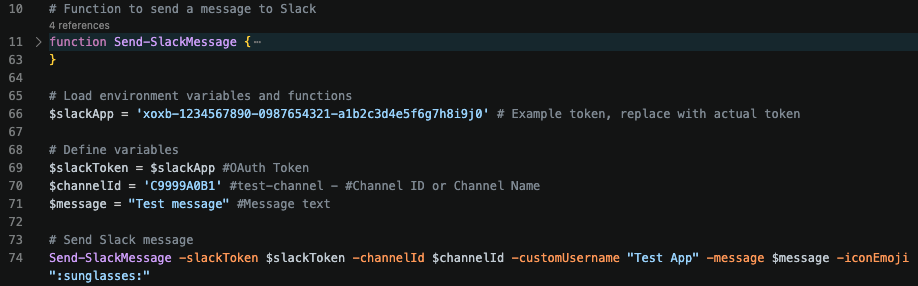
The script includes a function that gets called to execute the message sending and needs the Slack App OAuth token, the Slack channel to send the message, and then the ability to customize the displayed name of the app and the emoji/avatar of the bot.
Once you have the script downloaded, you will want to adjust it to include your Slack App OAuth token and replace the sample dummy one in my script. You also want to adjust the other variables accordingly with the Channel ID/Name, Message Text, and any other changes.
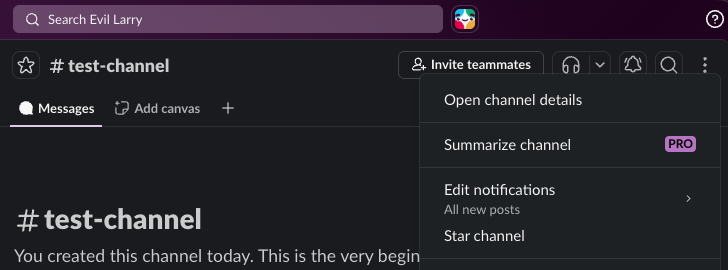
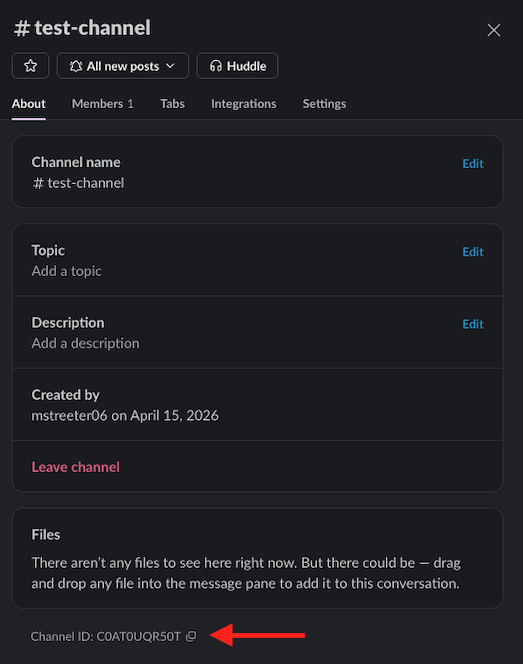
To locate the Slack channel’s ID, the easiest way in the GUI is to click into that channel in the Slack workspace then click the 3-dot icon then click Open channel details.
This will then open a dialog box where it will display the Channel ID where you can copy that value.
Once you have everything adjusted on your side in your PowerShell script, you can now test things out my running the final line of the script:

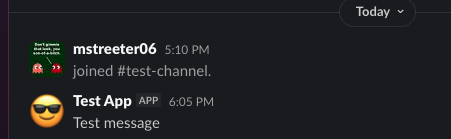
If all went successfully, you will see your test message sent in the channel defined in your script!