I found myself in a situation where I wanted to preserve my Slack workspace’s chat history but being on the free tier, there are native limitations for how far back you will be able to see messages in your Slack workspace. The free tier limit for viewing messages and files is 90 days which means that anything older is not visible in Slack until you upgrade your tier to a paid tier.

I did not want to pay for this upgrade so I needed to develop a solution for my Slack workspaces that we were hopeful to preserve our chat history.
Slack Configuration
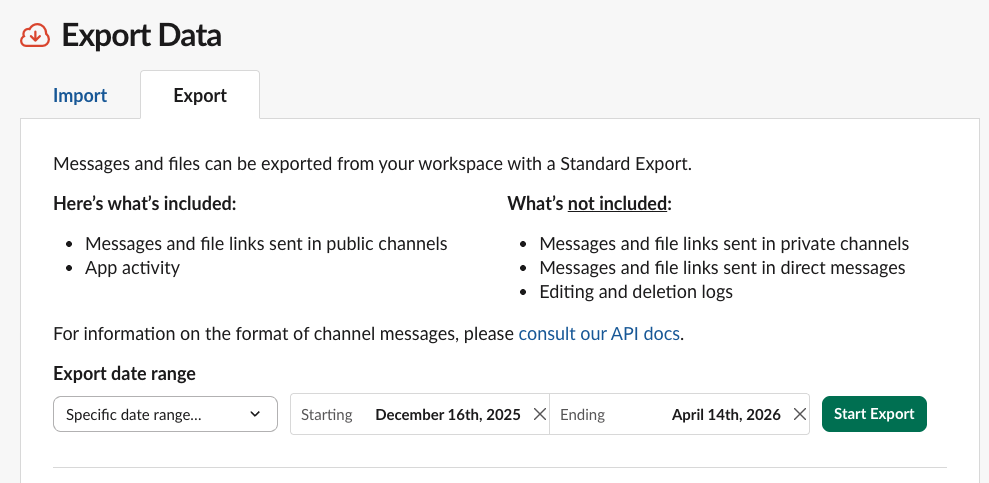
You will export your Slack’s data in the admin portal. Located in this path: Admin Portal > Security > Import & Export Data > Export. This can be navigated to directly by going to https://[workspace-name].slack.com/services/export. This area will showcase what will and will not be included in the free tier export. Your export will result in a .zip file.
To start the export, you will need to set the scope of the date range for your export using the dropdown. Once you have your date range selected, click Start Export.
You’ll now need to wait for the export to complete which will depend on how big your date range scope is and how much data there is in your Slack tenant. You will be notified by Slackbot in the Slack application and by email when the export is completed.

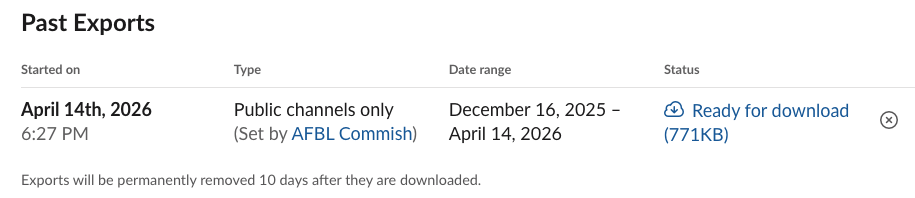
From that notification, you can click the your export page link OR just go back to your Export Data section of the Admin Portal > Security area tab on your browser. Then locate your newest export in the Past Exports section where you will then click Ready for download.
This guide will assume you already have another export zip file already downloaded from your Slack workspace but if you don’t have one yet, you will need a second Slack export file for this guide.
Script Configuration
Now that you have the two Slack exports downloaded, you can download the Python script I have put together for this from my GitHub found here: https://github.com/matthewrstreeter/slack/blob/main/Slack-MergeExports.py
Once you have the python script downloaded, you are now ready to merge the two Slack export download zip files into a single zip file. To run the script, you will need to do this:
python Slack-MergeExports.py slack-export-1.zip slack-export-2.zip slack-merged.zip
Viewing Slack Export
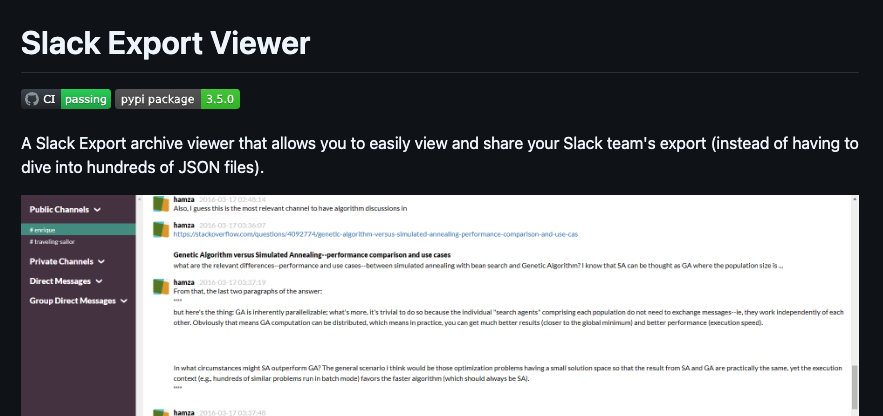
In order to now view the zip file of your Slack export, you will need to find a solution that provides that ability. I have settled on the slack-export-viewer repo from hfaran found here: https://github.com/hfaran/slack-export-viewer.
This also has the ability to export the zip file into static html files that can then be used to view in a browser in a GUI that looks similar to native Slack.
slack-export-viewer -z /path/to/export/zip -o /path/to/output